# How to create an object storage bucket
Source: https://docs.quake.ai/docs/object/how-to/create-container
Markdown: https://docs.quake.ai/docs/object/how-to/create-container.md
---
# How to create an object storage bucket
Create an object storage bucket (also called a container) to store files, backups, and other unstructured data. Bucket names must be unique within your project and cannot be changed after creation.
## Create the bucket
1. Select **Storage** > **Object Storage** > **Create Bucket**.
2. Enter a unique value in the required **Name** field. The name cannot be changed after creation.
3. Toggle **Public Access** to control whether the bucket is readable without authentication. The default is off.
4. Select **OK**.
A bucket with **Public Access** on is listable and downloadable by anyone with the URL. For finer-grained access (per-user, per-IP, time-limited), keep **Public Access** off at creation and apply an S3 bucket policy from [How to grant access control on an object storage bucket](/docs/object/how-to/grant-access-control).
```bash
openstack container create my-bucket
```
To make the bucket publicly readable, use the API method below to set its public read ACL.
If S3-compatible access is configured, you can use the AWS CLI:
```bash
aws s3 mb s3://my-bucket \
--endpoint-url "https://object.us-east-1.rumble.cloud"
```
The S3-compatible endpoint requires [EC2 credentials](/docs/tools/api-tokens). Set `AWS_ACCESS_KEY_ID` and `AWS_SECRET_ACCESS_KEY` before running S3 commands.
Using the Swift API:
```bash
curl -X PUT "$OS_SWIFT_URL/my-bucket" \
-H "X-Auth-Token: $OS_TOKEN"
```
A `201 Created` response confirms the bucket was created. To make the bucket public, set the read ACL:
```bash
curl -X POST "$OS_SWIFT_URL/my-bucket" \
-H "X-Auth-Token: $OS_TOKEN" \
-H "X-Container-Read: .r:*,.rlistings"
```
```python
import openstack
conn = openstack.connect(cloud="rumble")
container = conn.object_store.create_container(name="my-bucket")
print(f"Bucket created: {container.name}")
```
Using boto3 for S3-compatible access:
```python
import boto3
s3 = boto3.client(
"s3",
endpoint_url="YOUR_S3_ENDPOINT",
aws_access_key_id="YOUR_ACCESS_KEY",
aws_secret_access_key="YOUR_SECRET_KEY",
)
s3.create_bucket(Bucket="my-bucket")
```
```hcl
resource "openstack_objectstorage_container_v1" "my_bucket" {
name = "my-bucket"
}
```
To create a public container, add a read ACL:
```hcl
resource "openstack_objectstorage_container_v1" "my_public_bucket" {
name = "my-public-bucket"
container_read = ".r:*,.rlistings"
}
```
See the [S3 storage with ACL template](/resources/iac-templates/s3-storage-acl) for a complete example with access controls and lifecycle policies.
## Verify the result
Navigate to **Storage** > **Object Storage**. The new bucket appears in the list.
```bash
openstack container list
openstack container show my-bucket
```
```bash
curl -s "$OS_SWIFT_URL?format=json" \
-H "X-Auth-Token: $OS_TOKEN" | python3 -m json.tool
```
```bash
tofu show
```
The container resource appears in the state output.
## About the bucket detail view
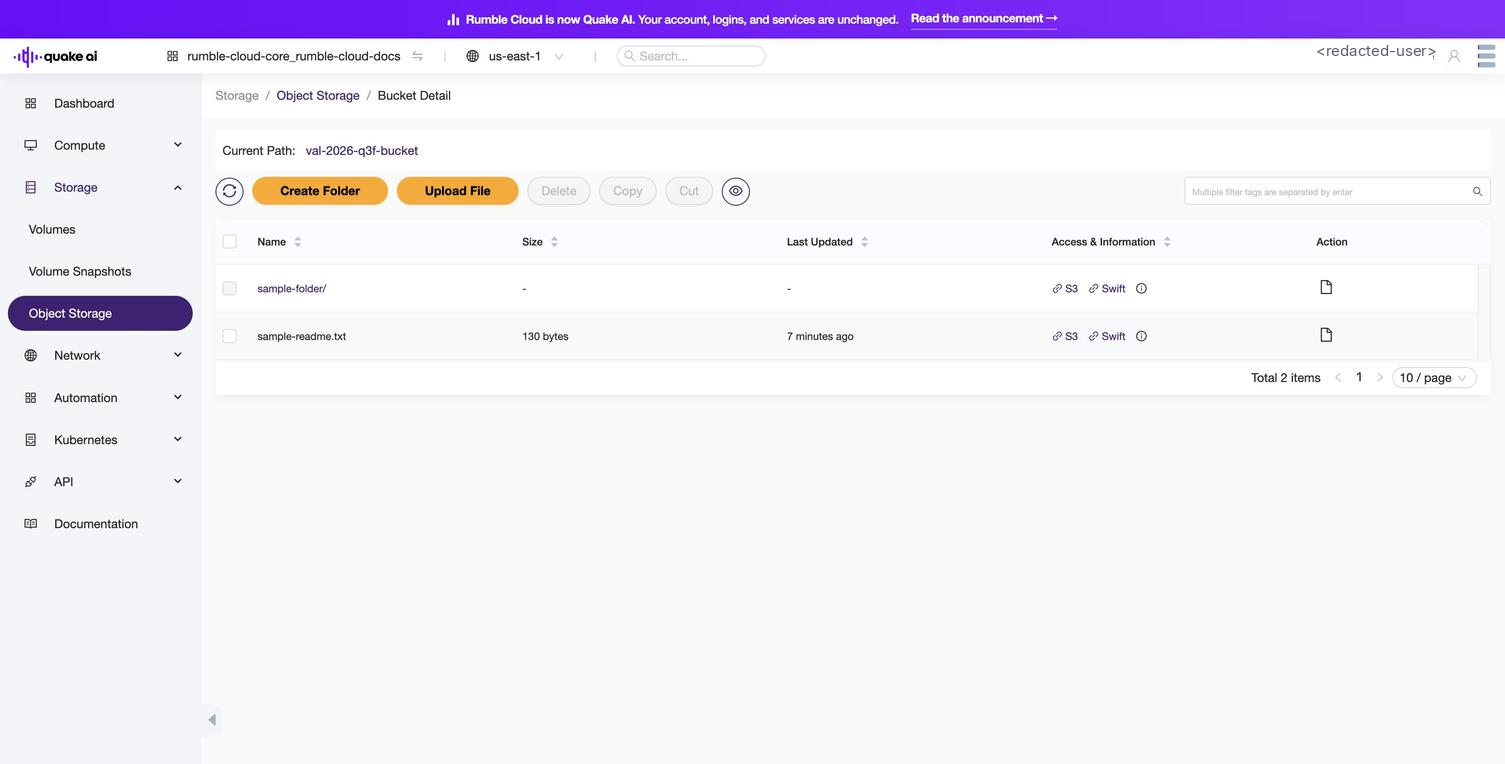
Selecting a bucket from the list opens a flat file and object browser. No Settings, Access, CORS, or Lifecycle tabs appear in the detail view: bucket-level controls (visibility, deletion) live on the list-row gear icon under **File Operations** in **Storage** > **Object Storage**.
## Next steps
After creating the bucket, you can:
- [Upload a file to the bucket](/docs/object/how-to/upload-file)
- [Create folders within the bucket](/docs/object/how-to/create-folder)
## See also
- [Object storage CLI reference](/reference/object-storage/cli)
- [Object storage API reference](/reference/object-storage/api)
- [Object storage console](/reference/object-storage/console/object-storage)