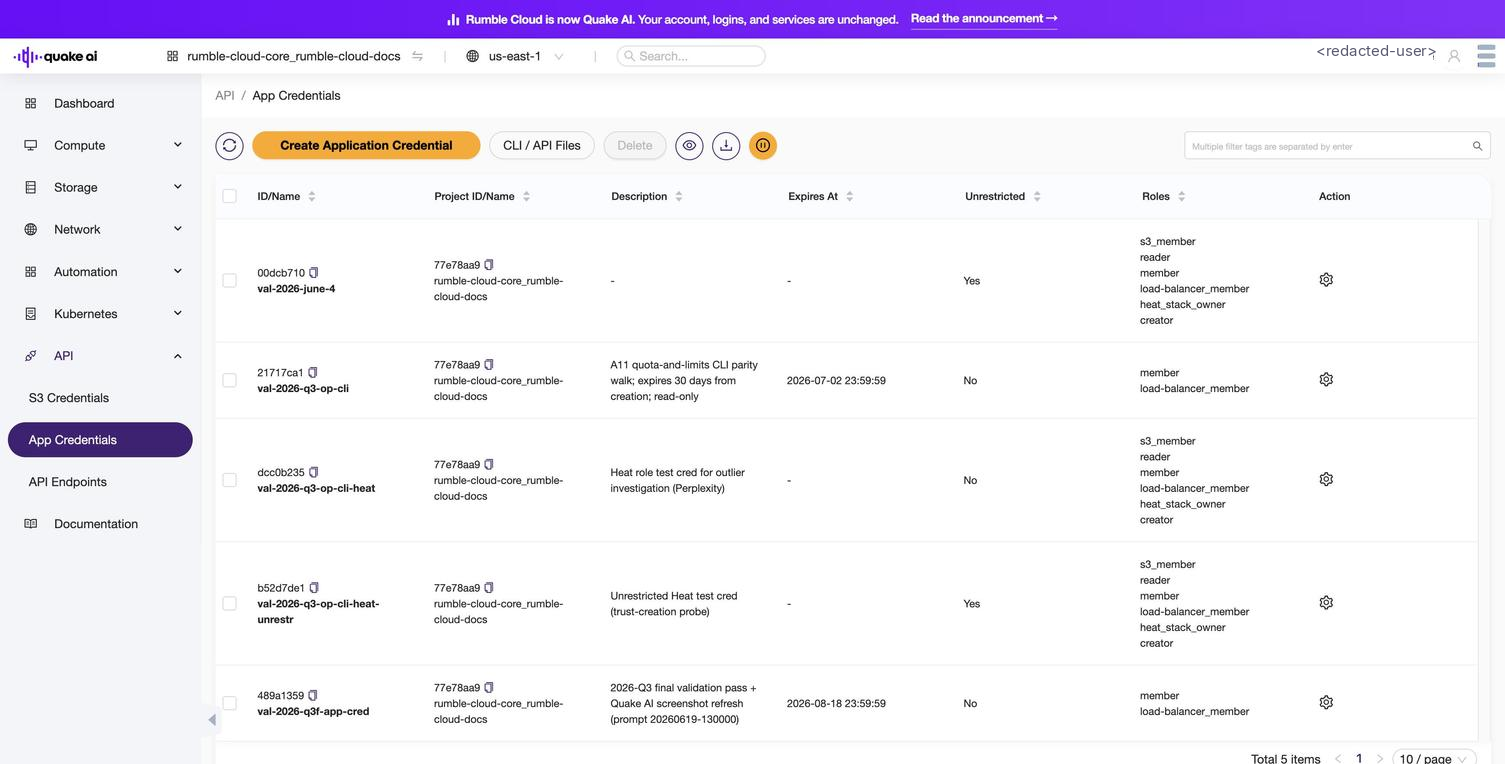
# How to create application credentials
Source: https://docs.quake.ai/docs/tools/generate-app-credentials
Markdown: https://docs.quake.ai/docs/tools/generate-app-credentials.md
---
# How to create application credentials
Create application credentials to authenticate against the OpenStack API without using your account password. Application credentials are the recommended authentication method for CI/CD pipelines, automation scripts, Terraform, and the OpenStack CLI.
Each credential is scoped to a single project and can be restricted to specific roles. Unlike [API tokens](/docs/tools/api-tokens), application credentials do not expire after 24 hours; you control the lifetime.
- A Quake AI project with at least one active service
## Create an application credential
1. Select **API** > **App Credentials** in the sidebar.
2. Select **Create Application Credential**.
3. Fill in the credential fields:
| Field | Required | Description |
|-------|----------|-------------|
| **Name** | Yes | A descriptive name (e.g., `ci-deploy`, `terraform-prod`) |
| **Expires At** | No | Date and time when the credential becomes invalid. Leave empty for no expiration. |
| **Roles** | No | Restrict the credential to specific roles. Leave empty to inherit your current roles. See [Available roles](#available-roles). |
| **Unrestricted** | No | When checked, allows the credential to create other credentials, manage trusts, and manage Kubernetes clusters. Leave unchecked unless you need it. |
| **Description** | No | Purpose or owner of this credential |
4. Select **OK** to generate the credential.
5. The console displays the credential ID and secret, labeled **Credential Id** and **Credential Secret** in the dialog. Both values are shown only once. Copy each with the copy icon beside it, or download a credential file (next step), and store them securely.
6. Optionally select **openrc.sh** or **clouds.yaml** to download a credential file, or use the copy icon beside each to copy its contents. Both files configure the CLI; `clouds.yaml` is preferred when you work with more than one OpenStack deployment.
7. Select **Close**.
The credential secret is not available after you close this page. Copy it or download a credential file before you close the page. If you lose the secret, generate a new application credential; you cannot recover the old one.
To delete a credential, select it in the list, select **Delete**, then select **Confirm** in the **Delete Application Credential** dialog.
Create a credential with the OpenStack CLI:
```bash
openstack application credential create my-credential \
--description "CI/CD pipeline for staging"
```
The output includes the `id` and `secret`. Store the secret securely; it cannot be retrieved again.
To set an expiration date:
```bash
openstack application credential create my-credential \
--expiration "2026-12-31T23:59:59"
```
To restrict to specific roles:
```bash
openstack application credential create my-credential \
--role member
```
To create an unrestricted credential (required for managing trusts and Kubernetes clusters):
```bash
openstack application credential create my-credential \
--unrestricted
```
List existing credentials:
```bash
openstack application credential list
```
Delete a credential:
```bash
openstack application credential delete my-credential
```
## Available roles
The roles in the **Roles** field depend on your project. The create dialog lists the roles you can assign to a credential. Commonly available roles include:
| Role | Typical use |
|------|-------------|
| `member` | Standard read and write access to project resources. The most common choice. |
| `reader` | Read-only access to project resources. |
| `s3_member` | Access S3-compatible object storage. |
| `heat_stack_owner` | Create and manage orchestration stacks (Heat). |
Leave **Roles** empty to inherit the roles from your current token. Pass a role name to the CLI with `--role`, for example `--role member`.
## Configure `clouds.yaml`
After creating an application credential, configure your OpenStack CLI and SDKs by placing a `clouds.yaml` file at `~/.config/openstack/clouds.yaml`:
```yaml
clouds:
quakeai:
auth:
auth_url: https://keystone.rumble.cloud/v3
application_credential_id: YOUR_CREDENTIAL_ID
application_credential_secret: YOUR_CREDENTIAL_SECRET
auth_type: v3applicationcredential
region_name: us-east-1 # us-east-1 | us-east-2 | us-west-1
interface: public
identity_api_version: 3
```
Then select the cloud in your shell:
```bash
export OS_CLOUD=quakeai
openstack server list
```
The CLI discovers service endpoints from the Keystone catalog automatically; you do not need to configure individual service URLs.
Store `clouds.yaml` securely. It contains your application credential secret. Add `clouds.yaml` to your `.gitignore` and do not commit it to version control.
## Use the openrc.sh file
If you downloaded the `openrc.sh` file from the console, source it to set environment variables:
```bash
source openrc-MY_CREDENTIAL.sh
openstack server list
```
The `openrc.sh` approach is equivalent to `clouds.yaml`; it uses shell environment variables instead of a configuration file. Choose whichever fits your workflow. `clouds.yaml` supports multiple clouds and is preferred for projects that interact with more than one OpenStack deployment.
## Security considerations
- **Prefer restricted credentials.** Leave the **Unrestricted** checkbox unchecked unless you specifically need to manage trusts, create other credentials, or provision Kubernetes clusters. Restricted credentials limit blast radius.
- **Set expiration dates** for credentials used in temporary environments (staging, testing, demos).
- **Rotate credentials periodically.** Delete old credentials and create new ones; there is no "rotate" action. Create a replacement before deleting the old one.
- **One credential per service.** Use separate credentials for CI/CD, Terraform, monitoring, and interactive use. This makes revocation granular.
## See also
- [API access console reference](/docs/tools/api-access-console): overview of the API section in the console
- [App credentials reference](/docs/tools/app-credentials): console reference for the credentials view
- [Service Endpoints](/docs/tools/service-endpoints): all 12 service base URLs with `clouds.yaml` example
- [How to get an API token](/docs/tools/api-tokens): quick ad-hoc tokens for testing
- [S3 credentials](/docs/tools/s3-credentials): separate credentials for S3-compatible object storage access
- [Install OpenStack client](/docs/tools/install-openstack-client): CLI installation