Instance connectivity troubleshooting
Coming from another cloud?
▸AWS·EC2 Connectivity
This Quake AI feature maps to AWS’s EC2 Connectivity.
▸DigitalOcean·Droplet Connectivity
This Quake AI feature maps to DigitalOcean’s Droplet Connectivity.
Instance connectivity troubleshooting
This runbook covers the most common reasons an instance becomes unreachable: from initial SSH failures after launch to intermittent connectivity loss after reboot. Connectivity issues typically involve the Compute service (OpenStack Nova) and the Network service (OpenStack Neutron) working together. Work through each section in order; the diagnostic flow eliminates the most likely causes first. For broader operations context, see Operate overview and Troubleshooting.
Quick triage#
Start here. Run these checks to narrow down the problem before diving into a specific section.
| Symptom | Most likely cause | Jump to |
|---|---|---|
| SSH times out on a new instance | Security group or floating IP misconfiguration | SSH unreachable after launch |
| Floating IP allocated but not reachable | Missing security group rule or router gateway | Floating IP not reachable |
| Traffic allowed by rules still blocked | Rule on wrong security group or direction mismatch | Security group rules not taking effect |
ping by IP works, DNS resolution fails | Missing subnet DNS nameservers | DNS resolution failure |
| Instance was reachable, now unreachable after reboot | Floating IP disassociated or network interface reset | Unreachable after reboot |
| Two instances on the same network cannot communicate | Security group or routing gap | Inter-instance connectivity failure |
SSH unreachable after launch#
Symptoms#
The instance status shows Running in the console, but SSH connections fail with one of:
Connection timed outConnection refusedPermission denied (publickey)
Diagnosis#
Work through these checks in order. Stop at the first failure; that is your root cause.
1. Verify a floating IP is associated:
openstack server show YOUR_INSTANCE_NAME -c addressesLook for a public IP alongside the private IP. If only a private IP appears, no floating IP is associated.
2. Verify the security group allows SSH:
openstack security group rule list YOUR_SECURITY_GROUPConfirm a rule exists with direction ingress, protocol tcp, port 22, and a remote IP range that includes your source IP (or 0.0.0.0/0).
3. Verify the correct key pair:
openstack server show YOUR_INSTANCE_NAME -c key_nameMatch the returned key name against your local ~/.ssh/ directory. The private key file must correspond to the key pair assigned at launch.
4. Verify the username:
Each image has a default SSH user. Using the wrong username produces Permission denied.
| Image | Username |
|---|---|
| Ubuntu | ubuntu |
| Debian | debian |
| CentOS / Rocky | centos / rocky |
| Fedora | fedora |
5. Check the console log for boot errors:
openstack console log show YOUR_INSTANCE_NAME --lines 50Look for cloud-init errors, SSH daemon failures, or metadata service timeouts.
Resolution#
Based on which check failed:
- No floating IP: Allocate and associate one:
openstack floating ip create PublicStatic
openstack server add floating ip YOUR_INSTANCE_NAME YOUR_FLOATING_IP- No SSH security group rule: Add one:
openstack security group rule create --protocol tcp --dst-port 22 --remote-ip 0.0.0.0/0 YOUR_SECURITY_GROUP- Wrong key pair: You cannot change the key pair after launch. Create a new instance with the correct key, or use VNC console access as a fallback:
openstack console url show YOUR_INSTANCE_NAME- cloud-init failed to inject key: Try a hard reboot: cloud-init retries on boot:
openstack server reboot --hard YOUR_INSTANCE_NAMEVerification#
ssh -i ~/.ssh/YOUR_KEY ubuntu@YOUR_FLOATING_IPA successful login confirms connectivity is restored.
Prevention#
- Verify security group rules include SSH access before launching an instance.
- Test SSH immediately after the instance reaches Running status.
- Use the platform's default security group template when it includes SSH pre-configured.
When to escalate#
If all checks pass (floating IP associated, security group rules correct, key pair matches, console log shows no errors) and SSH still fails, file a support ticket. Include the instance ID, floating IP, security group ID, and the timestamp when the issue started.
Floating IP not reachable from internet#
Symptoms (floating IP not reachable from internet)#
A floating IP is allocated and associated with an instance, but connections from the internet time out. ping YOUR_FLOATING_IP returns no response.
Diagnosis (floating IP not reachable from internet)#
1. Verify the security group allows the traffic type:
CLI:
openstack security group rule list YOUR_SECURITY_GROUPConsole: Navigate to Network > Security Groups > select the group attached to the instance. Review the rules table for the expected protocol, port, and direction.
ICMP (ping) is not enabled by default. Check for a rule with protocol icmp. For SSH, check for tcp port 22. For HTTP, check for tcp port 80 or 443.
2. Verify the router has an external gateway:
CLI:
openstack router show YOUR_ROUTER -c external_gateway_infoIf external_gateway_info is null, the router has no route to the internet and floating IPs cannot function.
Console: Navigate to Network > Routers > select the router. Check the External Gateway field in the router details. If it shows "No external gateway," the router is not connected to the internet.
3. Verify the router has an interface on the instance's subnet:
CLI:
openstack router show YOUR_ROUTER -c interfaces_infoLook for the instance's subnet ID in the interfaces_info list. If the subnet is missing, the floating IP has no routing path to the instance.
Console: Navigate to Network > Routers > select the router. Check the Interfaces tab for the instance's subnet. If the subnet is not listed, the router cannot route traffic to the instance.
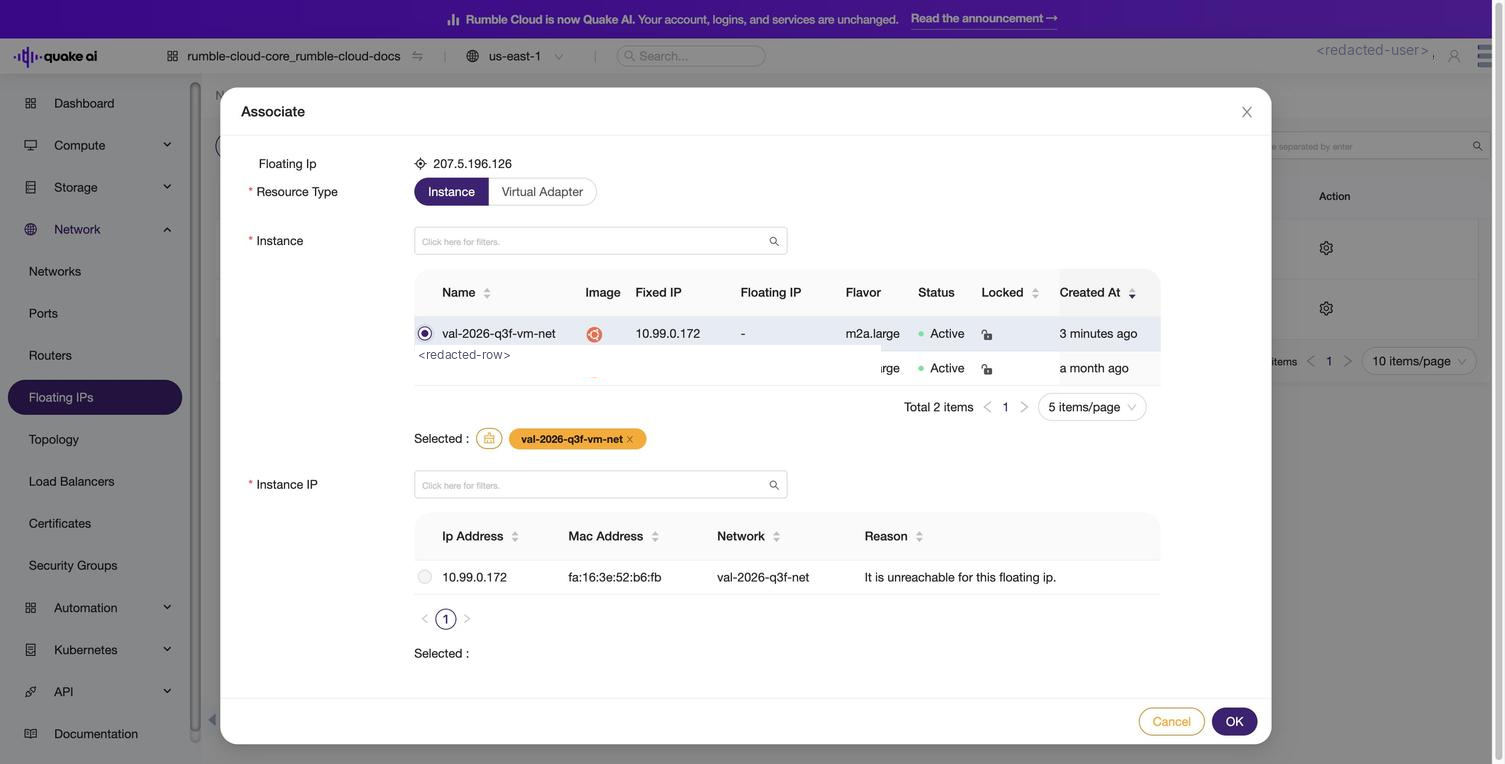
When the router lacks an interface to the instance's subnet, the console shows "It is unreachable for this floating ip" when you try to associate the floating IP:
 Click to zoom
This scenario also surfaces in inter-instance connectivity failures when instances on different subnets cannot communicate through the router.
4. Verify the floating IP is bound to a port:
openstack floating ip show YOUR_FLOATING_IP -c port_idIf port_id is None, the floating IP is allocated but not associated with any instance.
Console: Navigate to Network > Floating IPs. Check the Mapped Fixed IP Address column. If it shows no mapping, the floating IP is not associated.
5. Verify the port's security group:
openstack port show YOUR_PORT_ID -c security_group_idsConfirm the port uses a security group that allows the expected traffic.
Resolution (floating IP not reachable from internet)#
- No ICMP rule: Add one if you need ping:
openstack security group rule create --protocol icmp YOUR_SECURITY_GROUP- No external gateway on router: Set it:
openstack router set --external-gateway PublicStatic YOUR_ROUTER- Router missing interface on instance's subnet: Add the subnet as a router interface:
CLI:
openstack router add subnet YOUR_ROUTER YOUR_SUBNETConsole: Navigate to Network > Routers > select the router > Connect Private Network > select the instance's subnet > confirm.
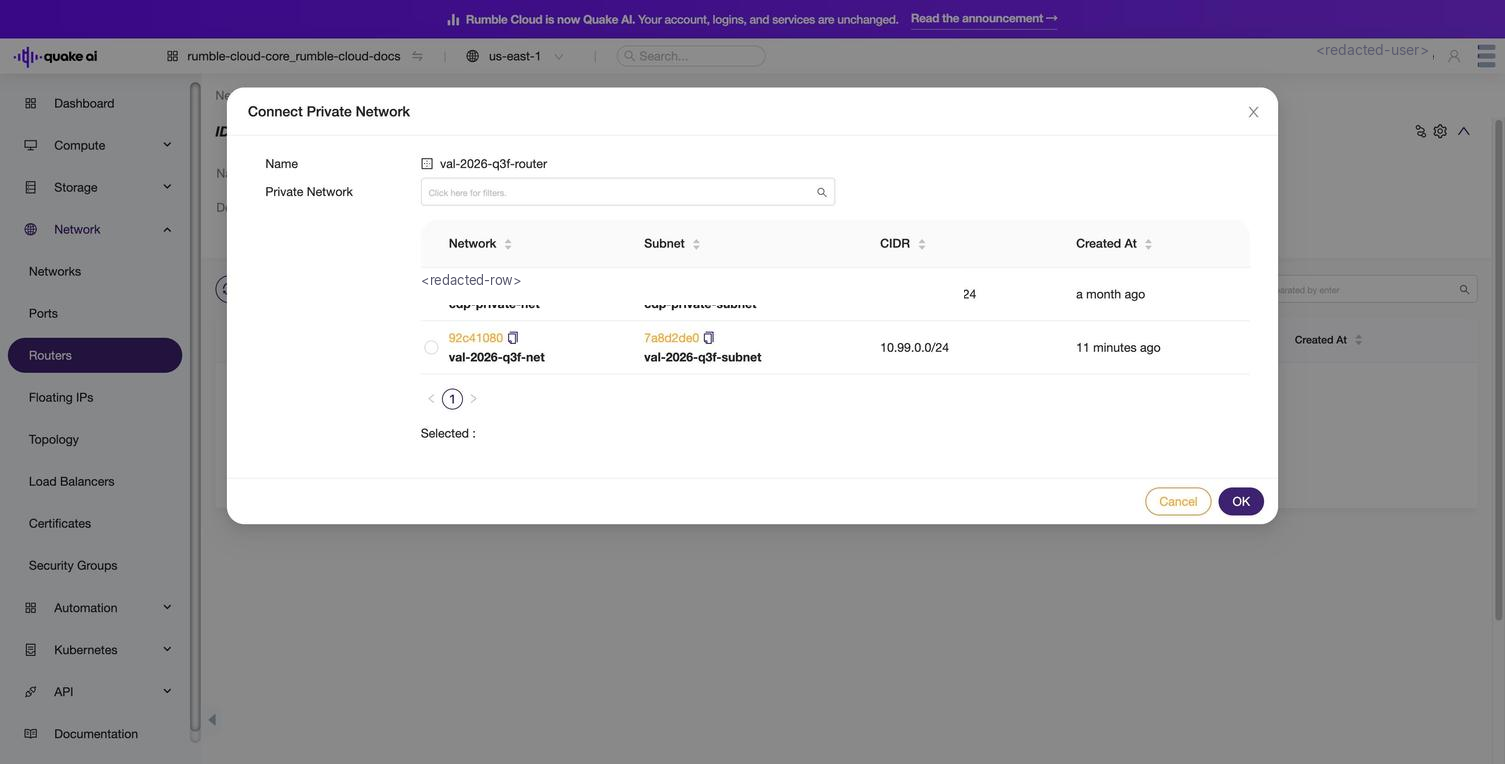 Click to zoom
After connecting the subnet, retry the floating IP association. The "unreachable" error clears and the instance becomes selectable.
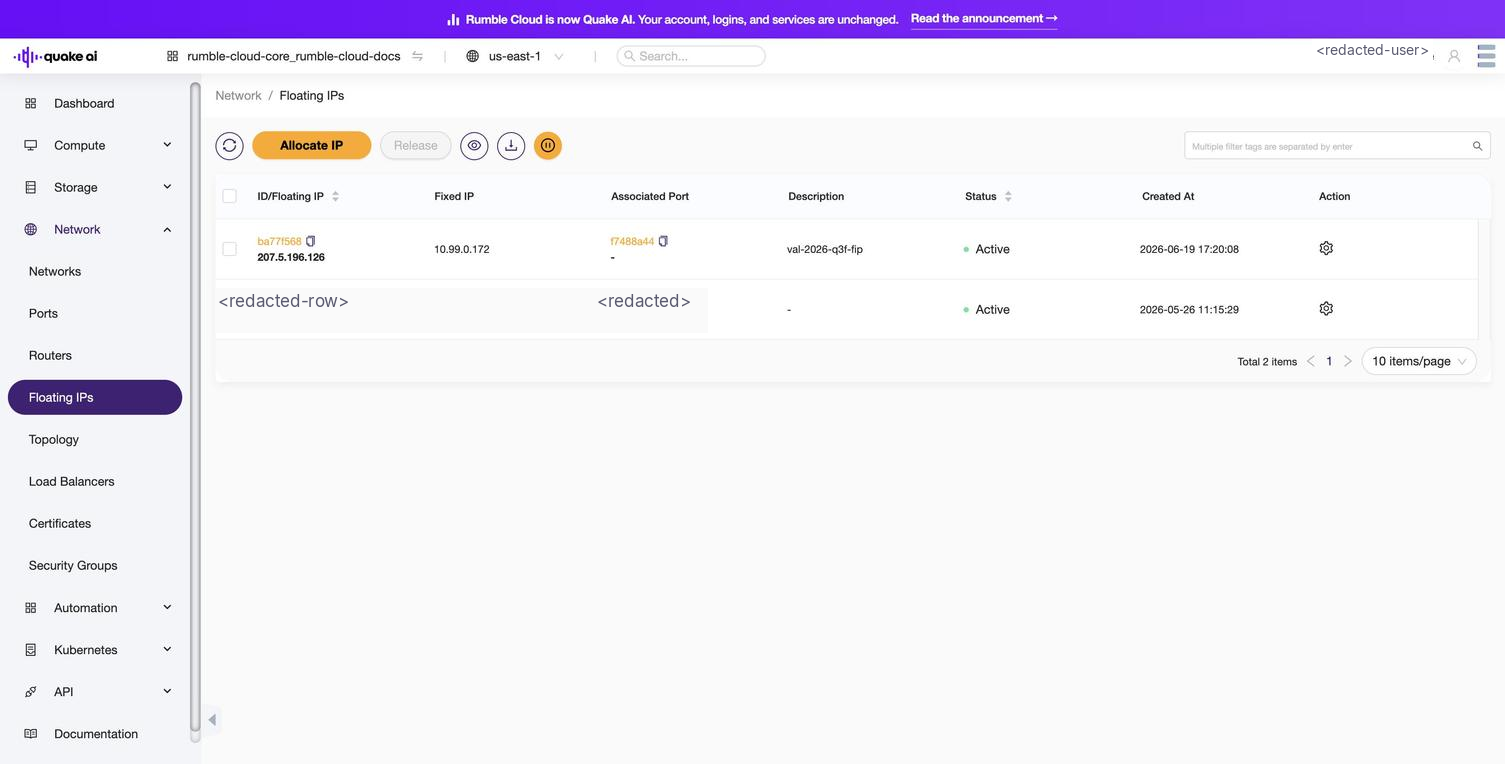 Click to zoom
- Floating IP not associated: Associate it:
openstack server add floating ip YOUR_INSTANCE_NAME YOUR_FLOATING_IP- Port security conflict (advanced): If all rules look correct, temporarily disable port security for diagnosis:
openstack port set --no-security-group --disable-port-security YOUR_PORT_IDIf traffic flows with port security disabled, the issue is in the security group configuration. Re-enable port security and correct the rules.
Verification (floating IP not reachable from internet)#
ping -c 3 YOUR_FLOATING_IPExpected: three successful ICMP replies.
Prevention (floating IP not reachable from internet)#
- Add ICMP rules if you need to test with ping; it is not enabled by default.
- Verify the router's external gateway is set when creating network infrastructure.
- Test connectivity immediately after floating IP association.
When to escalate (floating IP not reachable from internet)#
If all configuration is correct and the floating IP remains unreachable. This may indicate a platform-level networking issue. Collect the floating IP, port ID, router ID, and security group rules, then file a support ticket.
Security group rules not taking effect#
Symptoms (security group rules not taking effect)#
Security group rules are configured and visible in the console or CLI, but traffic matching the rules is still blocked (or allowed when it should not be).
Diagnosis (security group rules not taking effect)#
1. Identify which security groups are attached to the port:
openstack port list --server YOUR_INSTANCE_NAME
openstack port show YOUR_PORT_ID -c security_group_ids
An instance may have multiple ports. Verify the correct port has the expected security groups.
2. List all rules on each attached security group:
openstack security group rule list YOUR_SECURITY_GROUP_IDFor each rule, verify:
- Direction:
ingress(inbound) vs.egress(outbound) - Protocol and port range: matches the traffic you expect
- Remote IP or remote group: includes the traffic source
3. Check for remote security group references:
If a rule uses a remote security group instead of a remote IP, verify the remote group has active member ports. An empty remote group blocks all traffic matching that rule.
Resolution (security group rules not taking effect)#
- Rule on the wrong security group: Add the rule to the correct group, or reassign security groups on the port:
openstack port set --security-group YOUR_CORRECT_SG YOUR_PORT_ID- Direction mismatch: Delete the incorrect rule and recreate it with the correct direction:
openstack security group rule delete YOUR_RULE_ID
openstack security group rule create --ingress --protocol tcp --dst-port 443 YOUR_SECURITY_GROUP- Rules still not working after correction: Remove and re-add the rule. If the problem persists, create a new security group with the rules and swap it onto the port:
openstack security group create new-sg
openstack security group rule create --protocol tcp --dst-port 22 --remote-ip 0.0.0.0/0 new-sg
openstack port set --security-group new-sg YOUR_PORT_ID
Verification (security group rules not taking effect)#
Test the specific traffic type that was failing:
# SSH
ssh -i ~/.ssh/YOUR_KEY ubuntu@YOUR_FLOATING_IP

# HTTP
curl -I http://YOUR_FLOATING_IP

# Ping
ping -c 3 YOUR_FLOATING_IP
Prevention (security group rules not taking effect)#
- Name security groups descriptively (
web-server-sg,db-backend-sg) to avoid applying rules to the wrong group. - Use
openstack security group rule listafter creating rules to verify they appear. - Test rules immediately after creation.
When to escalate (security group rules not taking effect)#
Security group propagation typically takes seconds. If rules still have no effect after 5 minutes and all configuration is verified correct, file a support ticket with the security group ID, rule list output, and the specific traffic pattern that is blocked.
DNS resolution failure inside instance#
Symptoms (DNS resolution failure inside instance)#
The instance can reach external hosts by IP (ping 8.8.8.8 works) but DNS resolution fails (ping google.com returns "Name or service not known").
Diagnosis (DNS resolution failure inside instance)#
1. Check the instance's DNS configuration:
cat /etc/resolv.confOr on systems using systemd-resolved:
resolvectl statusIf no nameservers are listed, DHCP did not provide DNS configuration.
2. Check the subnet's DNS nameserver setting:
openstack subnet show YOUR_SUBNET -c dns_nameserversIf dns_nameservers is empty, the subnet does not advertise DNS servers to instances via DHCP.
Resolution (DNS resolution failure inside instance)#
Immediate fix inside the instance:
echo "nameserver 8.8.8.8" | sudo tee /etc/resolv.confThis restores DNS immediately but does not survive a DHCP renewal.
Persistent fix on the subnet:
openstack subnet set --dns-nameserver 8.8.8.8 --dns-nameserver 8.8.4.4 YOUR_SUBNETThen renew DHCP inside the instance to pick up the new servers:
sudo dhclient YOUR_INTERFACEOn systems using systemd-resolved:
sudo systemctl restart systemd-resolvedVerification (DNS resolution failure inside instance)#
ping -c 3 google.comExpected: successful DNS resolution and ICMP replies.
Prevention (DNS resolution failure inside instance)#
- Set DNS nameservers when creating subnets:
openstack subnet create --dns-nameserver 8.8.8.8 --dns-nameserver 8.8.4.4 --network YOUR_NETWORK --subnet-range 10.0.0.0/24 YOUR_SUBNET- Verify DNS works as part of your instance provisioning checklist.
When to escalate (DNS resolution failure inside instance)#
If DNS nameservers are correctly configured on the subnet and the instance still cannot resolve, the Neutron DHCP agent may not be serving the subnet. File a support ticket with the subnet ID and instance console log.
Instance unreachable after reboot#
Symptoms (Instance unreachable after reboot)#
An instance was previously accessible via SSH or its floating IP. After a reboot (soft or hard), the instance shows Running but network connectivity is lost.
Diagnosis (Instance unreachable after reboot)#
1. Verify the floating IP is still associated:
openstack server show YOUR_INSTANCE_NAME -c addressesFloating IP association can be disrupted during a reboot.
2. Check security group assignment on the port:
openstack port list --server YOUR_INSTANCE_NAME
openstack port show YOUR_PORT_ID -c security_group_ids
In rare cases, a port's security group binding can be lost during reboot.
3. Access the instance via VNC console:
openstack console url show YOUR_INSTANCE_NAMEIf the console is responsive but the network is not, the issue is networking-specific (not a general instance failure).
4. From the console, check the network interface:
ip addr show
ip route show
If the interface has no IP address or the default route is missing, DHCP did not complete after reboot.
Resolution (Instance unreachable after reboot)#
- Floating IP disassociated: Re-associate it:
openstack server add floating ip YOUR_INSTANCE_NAME YOUR_FLOATING_IP- Network interface unconfigured (from console): Re-request DHCP:
sudo dhclient YOUR_INTERFACE- Security group lost: Re-apply it to the port:
openstack port set --security-group YOUR_SECURITY_GROUP YOUR_PORT_IDVerification (Instance unreachable after reboot)#
ssh -i ~/.ssh/YOUR_KEY ubuntu@YOUR_FLOATING_IPPrevention (Instance unreachable after reboot)#
- Use hard reboot instead of soft reboot for instances with complex networking; it is more deterministic.
- Use
nofailoptions in/etc/fstabfor mounted volumes to prevent boot hangs that delay network initialization. - Test reboot behavior in a non-production environment before relying on it.
When to escalate (Instance unreachable after reboot)#
If the floating IP is associated, security groups are intact, and the instance's network interface is correctly configured but external connectivity still fails, file a support ticket. Include the instance ID, port ID, and ip addr show output from the VNC console.
Inter-instance connectivity failure#
Symptoms (inter-instance connectivity failure)#
Two instances on the same network cannot reach each other. Or instances on different networks connected by a router cannot communicate.
Diagnosis (inter-instance connectivity failure)#
1. Verify both instances are on the same network:
openstack server show INSTANCE_A -c addresses
openstack server show INSTANCE_B -c addresses
Check that both instances share a network name. Note their private IPs.
2. Verify security groups allow the traffic:
The default security group allows inbound traffic from members of the same group. Custom security groups may not. Check for a rule allowing traffic from the other instance's IP or security group:
openstack security group rule list YOUR_SECURITY_GROUP3. If instances are on different networks, verify a router connects them:
openstack router show YOUR_ROUTER -c interfaces_infoBoth subnets must be attached to the router as interfaces.
4. Check for port security conflicts:
If either instance runs containers, nested VMs, or acts as a NAT gateway, port security (anti-spoofing) blocks traffic from unexpected source IPs:
openstack port show YOUR_PORT_ID -c port_security_enabled -c allowed_address_pairsResolution (inter-instance connectivity failure)#
- Security group blocks inter-instance traffic: Add a rule allowing traffic from the remote security group:
openstack security group rule create --protocol tcp --dst-port 1:65535 --remote-group YOUR_SECURITY_GROUP YOUR_SECURITY_GROUPThis allows all TCP traffic between members of the same security group.
- No router between networks: Add the missing subnet as a router interface:
openstack router add subnet YOUR_ROUTER YOUR_SUBNET- Port security blocking container/nested traffic: Add allowed address pairs or disable port security on the affected port:
openstack port set --allowed-address ip-address=10.0.0.0/24 YOUR_PORT_IDVerification (inter-instance connectivity failure)#
From one instance, ping or connect to the other:
ping -c 3 INSTANCE_B_PRIVATE_IPPrevention (inter-instance connectivity failure)#
- Use security group remote-group rules to allow traffic between members of the same group.
- Plan network topology upfront: verify routers connect all subnets that need to communicate.
- If running containers or overlay networks, configure allowed address pairs at instance creation.
When to escalate (Inter-instance connectivity failure)#
If security groups, routing, and port security are all correctly configured and inter-instance traffic still fails, file a support ticket with both instance IDs, their port IDs, security group IDs, and the router ID.
Collecting evidence for support tickets#
When escalating any connectivity issue, gather this information before contacting support:
| Item | Command |
|---|---|
| Instance ID and status | openstack server show YOUR_INSTANCE_NAME -c id -c status -c fault |
| Network addresses | openstack server show YOUR_INSTANCE_NAME -c addresses |
| Port and security groups | openstack port list --server YOUR_INSTANCE_NAME |
| Security group rules | openstack security group rule list YOUR_SECURITY_GROUP |
| Router details | openstack router show YOUR_ROUTER |
| Console log (last 50 lines) | openstack console log show YOUR_INSTANCE_NAME --lines 50 |
| Timestamp | Note when the issue first occurred (UTC) |
For a complete evidence checklist, see Support ticket evidence procedure.
See also#
- Compute API error reference: HTTP status codes, fault messages, and state-conflict handling
- Network API error reference: port, router, floating IP, and security group errors
- Allocate floating IPs: assign a public IP to an instance
- Create security group rules: configure inbound and outbound traffic rules
- Create a VM on a public network: launch an instance with internet access
- Instance lifecycle troubleshooting: diagnose BUILD, ERROR, and quota failures
Usage Guidelines
The sample code, software libraries, command line tools, proofs of concept, templates, and other related technology on this page (including any of the foregoing that is provided by Quake AI personnel) is provided to you as Quake AI Content under the Quake AI Customer Agreement, or the relevant written agreement between you and Quake AI (whichever applies). Do not use this Quake AI Content in your production accounts, or on production or other critical data. You are responsible for testing, securing, and optimizing the Quake AI Content (such as sample code) as appropriate for production grade use based on your specific quality control practices and standards. Deploying Quake AI Content may incur Quake AI charges for creating or using Quake AI chargeable resources, such as running Compute instances or storing data in Object Storage. Your use is also subject to the Acceptable Use Policy.
For the full policy, see Usage Guidelines.
Last validated: 19.06.2026
See Also
Instances
Prerequisite
Network how-to guides
Shares: DNS, Networking
How to set up a site-to-site or remote-access VPN to Quake AI
Shares: Networking, Security Groups
Deploy the Simple VM template with OpenTofu
Shares: Networking, Security Groups
How to self-host authoritative DNS on Quake AI
Shares: DNS, Security Groups