API surface is DigitalOcean’s proprietary REST/CLI/Terraform tooling rather than OpenStack Nova/Neutron/Glance APIs (Droplets are managed via DigitalOcean UI/CLI/API/Terraform).
Billing is usage-based with per-second billing (60-second minimum and monthly cap) rather than the typical per-hour, quota-based charge model users often see in OpenStack-based clouds.
Droplets include a bundled outbound transfer allowance with each plan (starting at 500 GiB/month) rather than a separate bandwidth quota/metering model users often encounter in OpenStack deployments.
Droplets are described as Linux-based VMs on virtualized hardware with local SSD storage, whereas OpenStack deployments commonly expose distinct block storage (Cinder) and image services (Glance) and may not bundle bandwidth/monitoring/firewalls into the instance offering.
Servers provisioned individually via Hetzner API (hcloud), not OpenStack Nova flavors; fixed instance types like CX11 (1 vCPU, 2GB RAM, 20GB NVMe).
No flavor customization; choose from predefined shared/dedicated vCPU series.
Billing hourly with monthly cap per server (e.g., €3.29/mo cap for CX11), charged even when powered off until deleted, unlike typical OpenStack stop-to-pause billing.
Custom REST API at api.hetzner.cloud/v1/servers instead of OpenStack Nova /v2.1/servers (different auth, payloads, response formats).
The Networks console lists all networks in your project. Quake AI provides two shared networks: PublicEphemeral (dynamic public IP, released on instance delete) and PublicStatic (persistent public IP, billed separately). For the full networking model, see Networks.
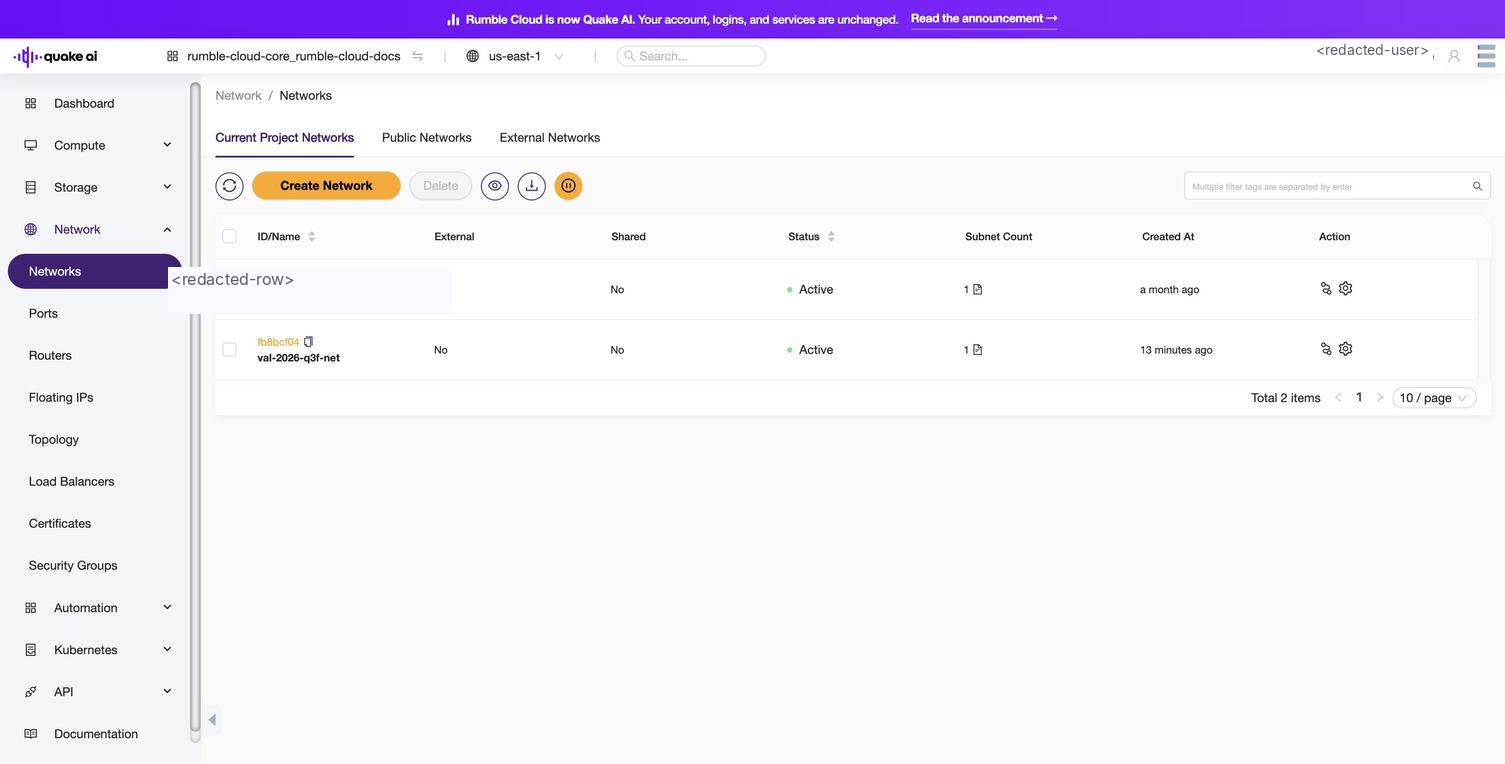
Select Network > Networks to display the Networks console (/network/networks). Three tabs at the top of the console correspond to network scope: Current Project Networks for networks you create, Public Networks for shared pools (currently PublicEphemeral), and External Networks for upstream pools (currently PublicStatic).
Click to zoom
Networks list showing project networks with name, subnets, and status
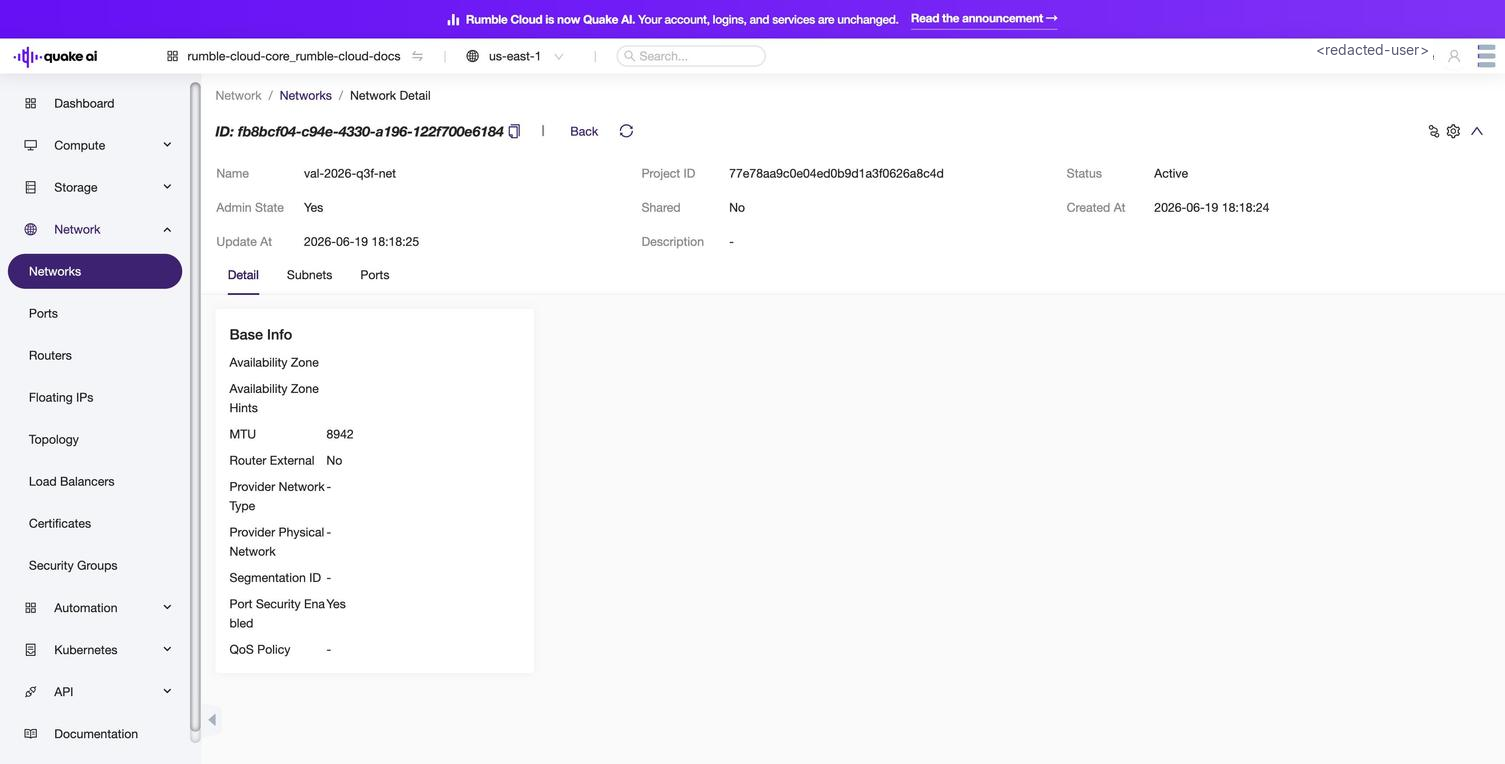
Select a network to view network details (/network/networks/detail/{id}) including subnets and ports.
Click to zoom
Network detail view with Subnets and Ports tabs
You can take the following actions:
Edit the network
Create a subnet
Delete the network
Select the Subnets tab to view associated subnets and take the following actions:
View subnet details
Edit subnets
Delete subnets
Select the Ports tab to view associated ports and take the following actions:
 Click to zoom
 Click to zoom