API surface is DigitalOcean’s proprietary REST/CLI/Terraform tooling rather than OpenStack Nova/Neutron/Glance APIs (Droplets are managed via DigitalOcean UI/CLI/API/Terraform).
Billing is usage-based with per-second billing (60-second minimum and monthly cap) rather than the typical per-hour, quota-based charge model users often see in OpenStack-based clouds.
Droplets include a bundled outbound transfer allowance with each plan (starting at 500 GiB/month) rather than a separate bandwidth quota/metering model users often encounter in OpenStack deployments.
Droplets are described as Linux-based VMs on virtualized hardware with local SSD storage, whereas OpenStack deployments commonly expose distinct block storage (Cinder) and image services (Glance) and may not bundle bandwidth/monitoring/firewalls into the instance offering.
Servers provisioned individually via Hetzner API (hcloud), not OpenStack Nova flavors; fixed instance types like CX11 (1 vCPU, 2GB RAM, 20GB NVMe).
No flavor customization; choose from predefined shared/dedicated vCPU series.
Billing hourly with monthly cap per server (e.g., €3.29/mo cap for CX11), charged even when powered off until deleted, unlike typical OpenStack stop-to-pause billing.
Custom REST API at api.hetzner.cloud/v1/servers instead of OpenStack Nova /v2.1/servers (different auth, payloads, response formats).
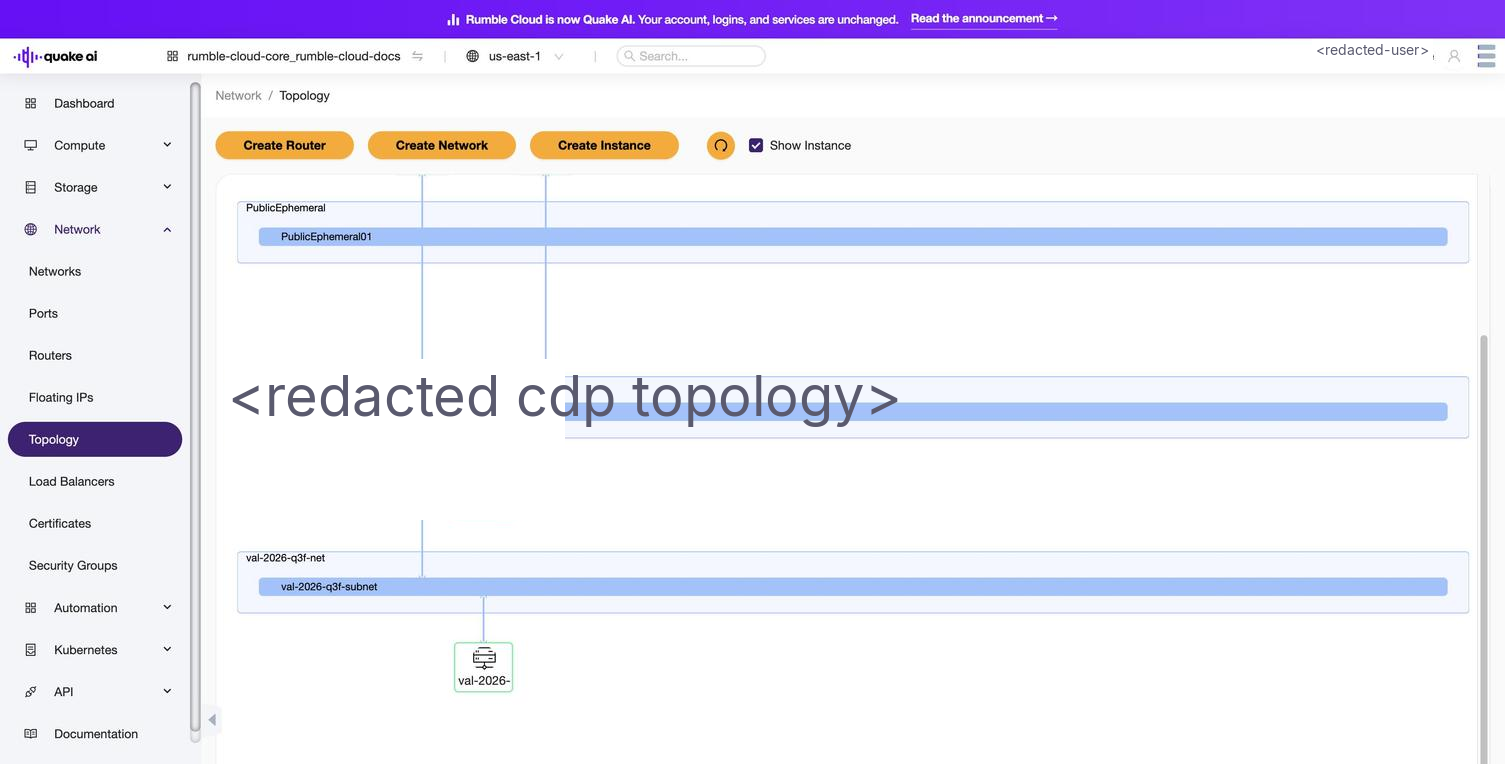
The topology console in the Network service provides a visual representation of the network resources and their relationships within your cloud environment. Use topology to view and understand the layout of networks, subnets, routers, instances, and other network-related entities in a graphical format.
Select Network > Topology to display the topology console (/network/topo).
Click to zoom
Network topology showing instances, networks, routers, and their connections
You can create routers, networks, and instances from the buttons at the top of the console.
The network topology appears as a graphical diagram, showing the different network components and their connections. You can see networks, subnets, routers, instances, and other resources, along with their status and configuration details.
Select a component in the topology diagram to view its details. For example, select a network to see its subnets and connected routers. Select an instance to see its IP addresses and associated security groups.
If you make changes to your network configuration (such as adding a new network or instance), you can refresh the topology view to see the updated layout.
You can use zoom and pan controls to adjust the view of the topology diagram, making it easier to focus on specific areas or get an overview of the entire network.
 Click to zoom