Instances console
Overview#
Instances are the building blocks for running applications and services in the cloud. They provide a flexible and scalable way to deploy workloads, with the ability to manage and scale resources as needed.
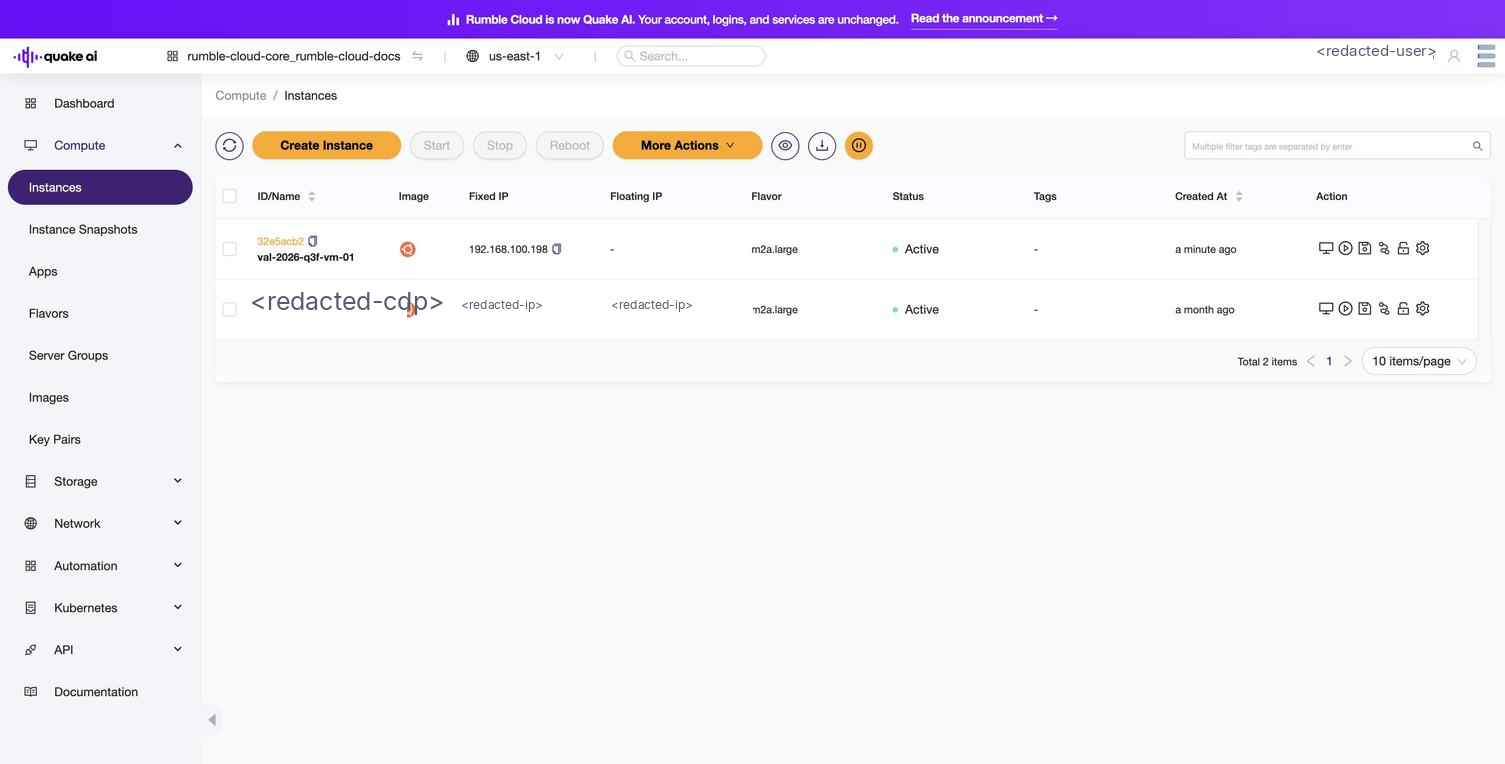
Select Compute > Instances to view the instances console. The console lists all instances in your project and lets you create and manage instances.
The Create Instance wizard uses four tabs: Base Config (name, availability zone, flavor, image, and disk), Network Config (network, subnet, security groups), System Config (login type, key pair, user data), and Confirm Config (review and launch). See How to create an instance for the full walkthrough.
The Instances console shows a list of all instances in a project.
 Click to zoom
You can start, stop, and reboot instances using the controls at the top of the console.
List view actions#
The list view toolbar and More Actions menu provide quick operations you can run without opening the instance detail:
- Start, Stop, Reboot: toolbar buttons
- Soft Reboot: graceful OS restart via the More Actions menu
- Delete: remove selected instances via the More Actions menu
For the full set of lifecycle, networking, and configuration operations, open the instance detail view.
Instance detail#
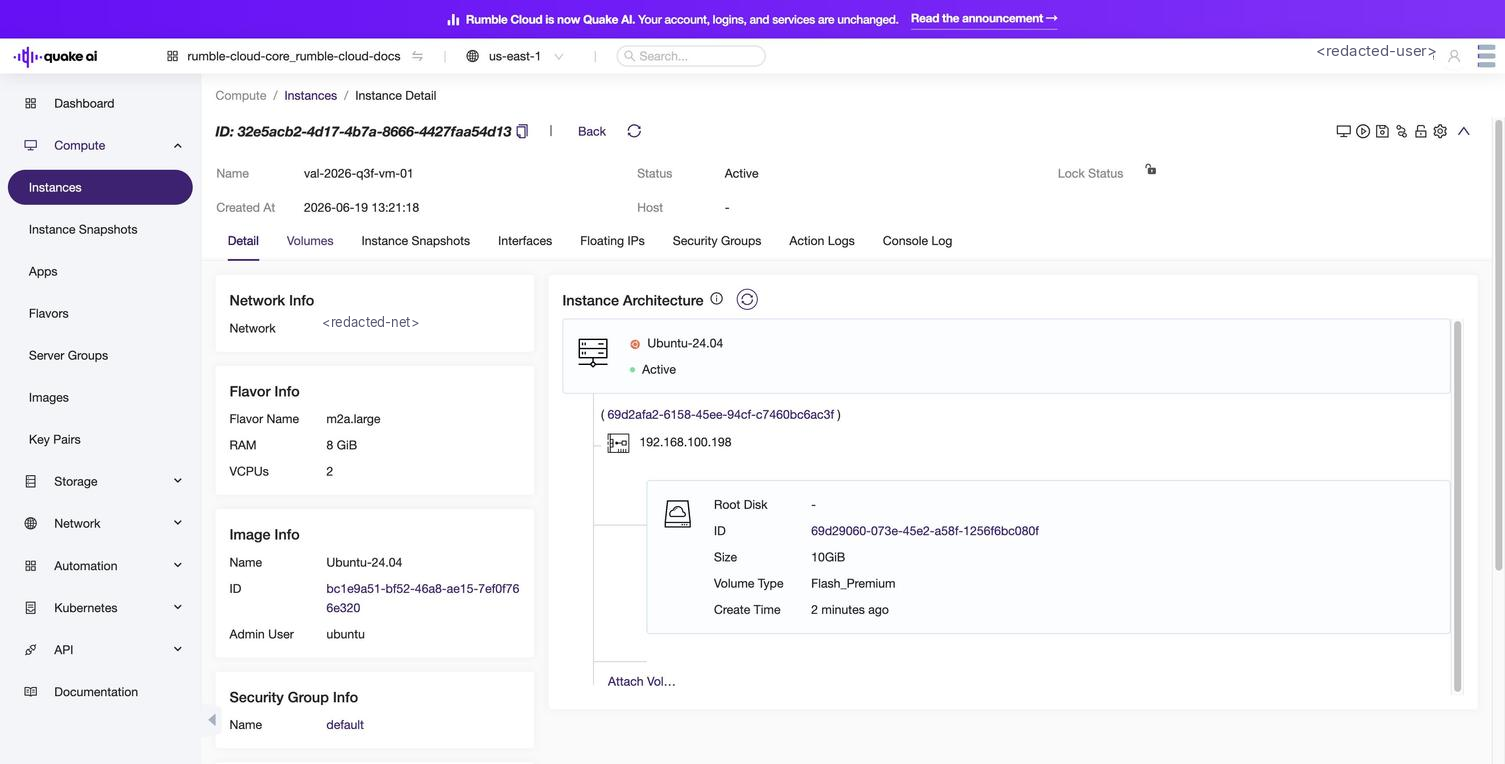
Select an instance to view the instance details, including:
- Network information
- Flavor information
- Image information
- Security group information
- Instance architecture diagram
 Click to zoom
Use the tabs along the top of the instance detail to navigate to other resources associated with the instance such as volumes, instance snapshots, interfaces, floating IP addresses, security groups, action logs, and console logs.
Select Console to launch an instance console. The console enables you to log in to the instance and control the virtual machine from the console terminal.
Detail view actions#
From the More menu in the detail view, you can take the following actions on the instance:
Under Instance Status, you can:
- Stop the instance
- Lock instances to prevent changes (any project user can lock or unlock instances in a project)
- Reboot the instance
- Soft reboot the instance
- Suspend to write to disk and freeze its current state.
- Pause to temporarily suspend the execution of the instance.
- Shelve to offload the instance from hypervisor resources while preserving the instance's state and data
Under Related Resources, you can:
- Attach / detach an interface to connect and disconnect virtual network interfaces to and from the instance
- Attach / detach a volume to connect and disconnect block storage volumes to and from the instance
- Associate floating IP addresses to assign an externally accessible IP address to the instance
- Manage the security group for the instance
Under Backups and Snapshots, you can:
- Create a snapshot to capture the current state of the instance, including its data, configuration, and disk contents.
Under Configuration Update, you can:
- Resize your virtual hardware
- Reset root or Administrator password for the instance (at the operating system)
- Rebuild an instance; this action selects a new operating system for your instance
Select Edit to edit the name of the instance.
Select Delete to delete the instance.
You can add and modify instance tags.
Instances details#
Here's a table summarizing the properties and attributes that you should understand to create or manage instances in the Compute service.
| Property/Attribute | Description |
|---|---|
| Name | A human-readable name for the instance, used for identification purposes. |
| ID | A unique identifier automatically assigned to the instance by OpenStack. |
| Status | Current state of the instance: active, shutoff, building, error, paused, suspended, shelved, shelved_offloaded, rescued, resized, verify_resize, reboot, hard_reboot, rebuild, migrating, deleted. |
| Flavor | Specifies the size of the instance, including CPU, RAM, and disk resources. |
| Image | The ID or name of the image used to create the instance. |
| Key Pair | The name of the SSH key pair associated with the instance for secure access. |
| Security Groups | A list of security groups applied to the instance for network access control. |
| Tenant ID | The ID of the project or tenant that owns the instance. |
| User ID | The ID of the user who created the instance. |
| Created At | The timestamp indicating when the instance was created. |
| Updated At | The timestamp indicating when the instance was last updated. |
| Networks | A list of networks and associated IP addresses assigned to the instance. |
| Metadata | A set of key-value pairs associated with the instance for custom information. |
| Availability Zone | The availability zone in which the instance is located. |
| Host | The name of the physical host machine where the instance is running. |
| Power State | The power state of the instance (for example, running, paused, shutdown). |
| Volumes Attached | A list of block storage volumes attached to the instance. |
| Floating IP | The floating IP address associated with the instance for external access. |
Understanding these properties and attributes is helpful for creating and managing instances, as they provide crucial information about the configuration, state, and resources of the instances.